
Discover 7 hidden Gemini AI features that can transform research, writing, images, productivity, and learning with practical tips you can use today.
Introduction
The first time I started using Gemini seriously, I made the same mistake many people make: I treated it like a search box that could answer questions.
I would type a question, read the response, ask another question, and close the app. It was useful, but I knew I was probably using only a small part of what the technology could actually do.
Then I started exploring features beyond ordinary chat. That changed how I looked at Gemini.
Instead of seeing it as simply an AI chatbot, I began seeing it as a collection of tools for research, writing, studying, image creation, organization, brainstorming, and everyday productivity.
That is exactly why these 7 Hidden Gemini AI Features You Should Start Using Today deserve attention.
Quick answer:
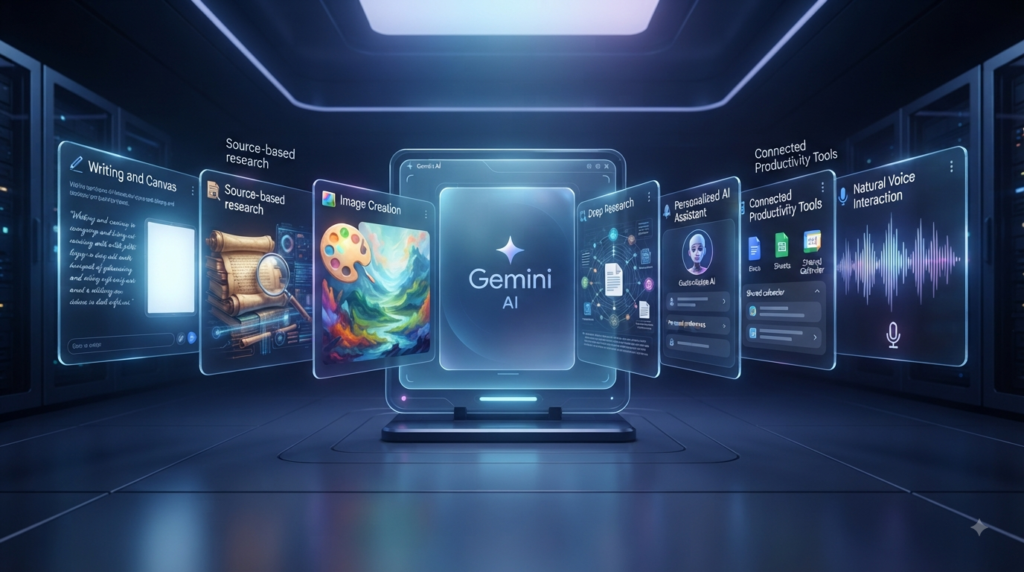
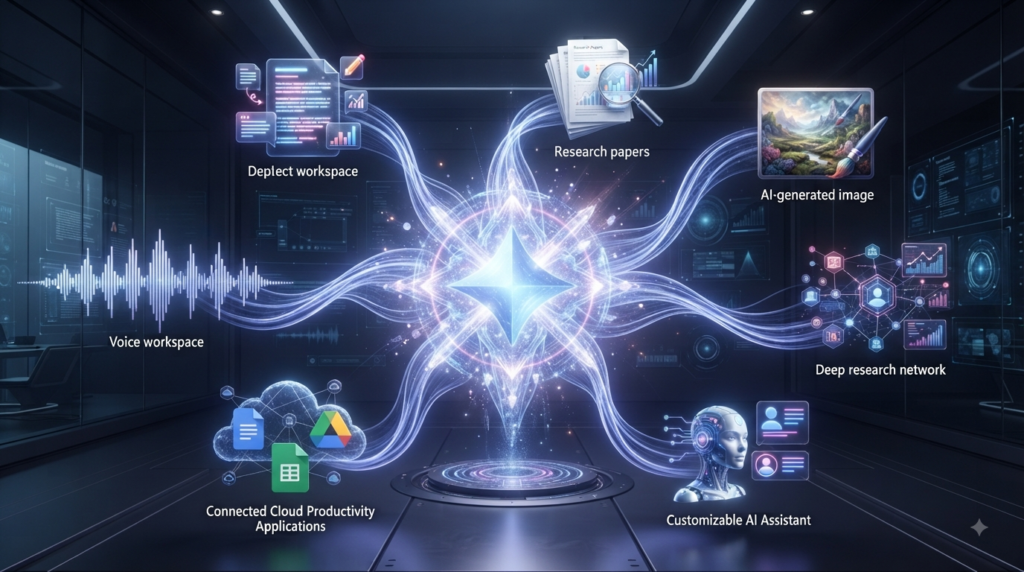
The most useful hidden or underused Gemini capabilities include Canvas, NotebookLM, AI image generation and editing, Deep Research, Gems, Google Workspace connections, and Gemini Live voice conversations. Together, these tools can help you create documents, analyze your own sources, research complicated subjects, build specialized AI assistants, work with Google services, create visuals, and communicate with Gemini naturally. Availability and limits can vary by account, age, country, device, and Google AI plan.
The important point is that you don’t need to become an AI expert to benefit from them.
You need to understand which feature solves which problem.
This guide explains what each feature does, when to use it, how to approach it, practical examples, mistakes to avoid, and how I would combine these tools into a simple workflow.
Why These 7 Hidden Gemini AI Features Matter
Most people approach AI with a question-and-answer mindset.
They think:
“I have a question. I will ask Gemini.”
That works, but it leaves enormous productivity potential unused.
A more powerful approach is:
“I have a problem. Which Gemini capability is best suited to solving it?”
That small change in thinking makes a major difference.
For example, imagine you are a student researching climate change. You could simply ask Gemini to explain climate change. But that isn’t necessarily the best workflow.
Instead, you could collect academic papers and other sources in NotebookLM, use Gemini to help research broader questions, use Canvas to turn your findings into a structured document, and use voice conversations to discuss difficult concepts.
A content creator could use Deep Research to investigate a subject, Canvas to organize the article, an image tool to create supporting visuals, and a custom Gem to maintain a consistent writing process.
A business owner could connect Workspace services, search through relevant information, organize tasks, research competitors, and create reports without constantly jumping between applications.
This is the deeper lesson behind these 7 Hidden Gemini AI Features You Should Start Using Today:
The value isn’t simply in having more AI features. The value is knowing when to use each one.
Google’s own Gemini documentation now lists capabilities spanning creation, research, connected services, voice interaction, file analysis, and Canvas-based work.
So let’s examine them one by one.
1. Canvas: Turn Gemini Into an Interactive Workspace
Canvas is one of the first features I would recommend to anyone who uses Gemini for serious work.
Why?
Because normal chat is excellent for conversation, but large projects often require something more structured.
Canvas lets you collaborate with Gemini on documents, apps, slides, and code. Google also documents the ability to transform Canvas creations into formats such as Audio Overviews and quizzes.
What makes Canvas different?
Imagine you’re writing a 2,000-word article.
In an ordinary chat, you might ask Gemini to write the article. Then you notice that the introduction is weak. You ask it to rewrite the introduction. Then you want a better heading. Then you want one section expanded.
The conversation can quickly become messy.
Canvas gives you a more project-oriented environment.
Instead of treating every response as a separate piece of text, you can work toward a finished creation and refine it.
That is particularly useful for:
- Blog articles
- Reports
- Essays
- Presentations
- Study materials
- Business documents
- Coding projects
- Brainstorming
- Structured plans
How I would use Canvas
My preferred workflow would look like this:
Step 1: Start with the outcome.
Don’t say:
“Write something about AI.”
Instead:
“Create a detailed beginner-friendly guide explaining how AI can help students study more efficiently.”
Step 2: Define the audience.
Tell Gemini whether you’re writing for students, business owners, beginners, developers, teachers, or another audience.
Step 3: Establish the structure.
Ask for an introduction, major sections, examples, practical steps, common mistakes, and conclusion.
Step 4: Refine individual parts.
Instead of rewriting everything, focus on what needs improvement.
For example:
“Make this section more practical. Add three real-world examples without making the writing repetitive.”
Step 5: Check the final product yourself.
AI can accelerate creation, but you remain responsible for accuracy, originality, tone, and judgment.
When Canvas is especially useful
If you frequently move information between Gemini, Google Docs, presentation software, and other tools, Canvas can reduce some of that friction.
That’s why Canvas belongs near the top of my list of 7 Hidden Gemini AI Features You Should Start Using Today.
Try it: Ask Canvas to turn one of your existing ideas into a structured document, then refine it section by section.
Official resource: Google Gemini Canvas Help
2. NotebookLM: Make AI Work From Your Own Sources
NotebookLM deserves special attention because it solves a problem that general AI conversations don’t always solve well: working directly from a defined collection of sources.
Google describes NotebookLM as an AI-powered research assistant that can work with sources such as PDFs, websites, YouTube videos, audio files, Google Docs, and Google Slides. It can also provide inline citations and transform source material into formats such as study guides, briefings, Audio Overviews, and mind maps.
Why source-grounded AI matters
Suppose you have a 100-page report.
You don’t want an AI to give you a generic explanation of the topic. You want it to understand that report.
That’s where NotebookLM becomes valuable.
You can provide the relevant material and then ask questions based on those sources.
For example:
“What are the three main conclusions of this report?”
Then:
“Which evidence supports conclusion number two?”
Then:
“Explain that evidence in simple language.”
You are no longer just asking an AI to recall general information.
You’re creating a controlled research environment around your material.
A practical student workflow
Imagine you’re preparing for an examination.
You could collect:
- Lecture notes
- PDFs
- Relevant documents
- Class materials
- Other supported sources
Then ask:
“Create a study guide based only on these materials.”
Follow that with:
“Give me 20 difficult questions based on the sources.”
Then:
“Test me one question at a time. Don’t reveal the answer until I respond.”
This transforms static notes into an interactive learning system.
A practical content-research workflow
For content creators, NotebookLM can be even more powerful.
Imagine you’re researching an article.
You could gather authoritative sources, reports, documents, and other materials, then ask:
“Identify the strongest arguments across these sources.”
Then:
“Where do the sources disagree?”
Then:
“Create a research outline without inventing information that isn’t supported by the sources.”
That final instruction matters.
AI can produce confident-sounding information that isn’t actually contained in your sources. A source-grounded workflow helps you maintain a clearer boundary between what your material says and what you may need to research separately.
Google notes that NotebookLM responses are grounded in notebook sources, while NotebookLM and Gemini can differ in how source grounding works.
One important limitation
NotebookLM is not a magical guarantee of truth.
Your sources can be wrong, outdated, incomplete, or biased.
So the correct mindset isn’t:
“NotebookLM must be correct.”
It is:
“NotebookLM helps me analyze a defined evidence base more efficiently.”
That distinction is important.
Official resource: Google NotebookLM Help
3. AI Image Generation and Editing: Create and Transform Visuals
Another major capability in the 7 Hidden Gemini AI Features You Should Start Using Today is image generation and editing.
You no longer need advanced graphic-design skills to experiment with AI-generated visuals.
Gemini can generate images from natural-language descriptions and can also edit images you provide. Google’s current documentation describes capabilities including local edits, improved instruction following, character consistency, and better text rendering with its current image-generation tools.
Generation is only half the story
Many beginners think image AI means:
“Write a prompt and get a picture.”
But editing can be equally useful.
Suppose you have an existing image and want to:
- Remove an unwanted object
- Change the background
- Adjust the composition
- Add an element
- Transform the visual style
- Combine multiple images
- Create variations
You can describe the change in ordinary language.
That makes image editing more accessible to people who don’t use professional design software.
A better way to prompt images
Weak prompt:
“Create a business image.”
Better prompt:
“Create a professional editorial-style image showing a young entrepreneur working at a desk with a laptop, notebooks, and a clean modern workspace. Use natural lighting, realistic proportions, subtle depth of field, and a premium technology-blog aesthetic.”
The second prompt gives the system more useful information.
Think about:
Subject: What should appear?
Action: What is happening?
Environment: Where is it happening?
Style: What visual language should it use?
Composition: How should the image be framed?
Mood: What should the viewer feel?
Text: If text is required, specify it carefully and check the result.
Google recommends describing the subject, action, background, and desired style when creating images.
Why this matters for creators
A blogger can create featured-image concepts.
A teacher can create visual learning materials.
A social-media creator can develop illustrations.
A business owner can explore marketing concepts.
A student can visualize a difficult idea.
But there is an important responsibility here: don’t assume AI-generated images are automatically suitable for every purpose.
Google itself warns users to consider copyright, privacy, terms, and the appropriateness of generated content before publishing or relying on it.
So use AI to accelerate visual creativity, but apply human judgment before publication.
4. Deep Research: Stop Doing All the Research Manually
Deep Research is arguably one of the most important capabilities in this list because it changes how you approach complicated research questions.
Google says Gemini Deep Research can conduct in-depth, real-time research and use Google Search by default, while also allowing additional sources such as Gmail, Drive, uploaded files, and NotebookLM notebooks where supported. Gemini creates a research plan that users can review or edit before starting the investigation.
What problem does Deep Research solve?
Imagine you want to investigate:
“How is AI changing online education?”
A normal chatbot response might provide a general explanation.
But serious research requires multiple questions:
- What changed recently?
- Which technologies matter?
- What are educators saying?
- What are the benefits?
- What are the risks?
- What evidence supports the claims?
- Which trends are likely to continue?
That is a research problem rather than a simple question.
Deep Research is designed for that kind of workflow.
A practical Deep Research workflow
Start with a specific research question.
Weak:
“Tell me about AI.”
Strong:
“Research how generative AI is changing content creation for small businesses, focusing on productivity, cost reduction, limitations, and emerging risks.”
Then specify what you want.
For example:
“Create a structured report with an executive summary, key findings, evidence, competing viewpoints, limitations, and a source list.”
If Gemini provides a research plan, don’t blindly accept it.
Read the plan.
Ask yourself:
- Is the research scope correct?
- Are important areas missing?
- Is the question too broad?
- Are the sources appropriate?
- Does the report need a geographic or time restriction?
Google says Deep Research typically takes several minutes because Gemini analyzes many sources, and more complex research can take longer.
Don’t confuse research speed with research certainty
This is one of the most important lessons I can give you.
AI can make research dramatically faster.
That doesn’t mean you should stop verifying.
When the topic involves:
- Money
- Law
- Medicine
- Politics
- Security
- Current events
- Academic claims
- Business decisions
you should examine important sources yourself.
AI should reduce the time required to investigate information—not remove your responsibility to judge it.
Official resource: Google Deep Research Help
5. Gems: Build Your Own Specialized Gemini Assistant
Gems are one of the features I consider most useful for people who repeatedly perform the same type of task.
Google describes Gems as customized versions of Gemini that can help with repetitive tasks or specialized areas. You can create instructions around your goals and preferences and reuse those instructions instead of repeating them in every conversation.
Why Gems are powerful
Imagine you write articles every week.
Every time you start a new chat, you might write:
“Act as an SEO strategist.”
Then:
“Use a professional tone.”
Then:
“Write for beginners.”
Then:
“Avoid clichés.”
Then:
“Give me practical examples.”
Then:
“Use short paragraphs.”
That’s repetitive.
A Gem can store a reusable set of instructions for that type of work.
Examples of specialized Gems
You could create:
SEO Content Gem
Instructions could define:
- Target audience
- Content structure
- Research process
- SEO approach
- Writing style
- Editing standards
English Teacher Gem
It could be instructed to:
- Explain grammar simply
- Give examples
- Correct student writing
- Create exercises
- Adjust difficulty
- Avoid unnecessarily complicated vocabulary
Study Partner Gem
It could:
- Ask questions
- Test your understanding
- Explain difficult concepts
- Create revision exercises
- Identify knowledge gaps
Business Brainstorming Gem
It could:
- Challenge your assumptions
- Identify opportunities
- Compare alternatives
- Ask strategic questions
- Highlight risks
The biggest mistake with Gems
Don’t create a vague Gem.
Weak instruction:
“You are my assistant. Help me.”
That doesn’t give Gemini enough direction.
Better:
“You are my research assistant. Help me investigate unfamiliar subjects. Separate established facts from assumptions, identify missing evidence, organize findings into clear sections, and tell me when a claim requires verification.”
The more clearly you define the role, workflow, boundaries, and output preferences, the more useful the Gem becomes.
The real advantage
The value isn’t merely that Gemini can follow instructions.
The value is consistency.
If you perform a repetitive task 30 times, you shouldn’t have to rebuild the same process 30 times.
That is why Gems belong among the 7 Hidden Gemini AI Features You Should Start Using Today.
6. Google Workspace Connections: Ask Gemini About Your Digital Work
This feature can change the relationship between Gemini and the information you already manage every day.
When Google Workspace connections are available and enabled, Gemini can work with services such as Gmail, Drive, Google Docs, Google Tasks, Google Keep, and Calendar. Google documents examples including finding information in emails, summarizing documents, managing tasks, saving notes, and checking or managing calendar events.
Why this is different
Think about your digital life.
Important information may be scattered across:
- Documents
- Drive
- Calendar
- Notes
- Tasks
The problem isn’t always that the information is missing.
The problem is finding it.
Instead of manually searching through different applications, connected Gemini capabilities can allow you to ask natural-language questions about relevant information.
For example:
“Find the recent email about the project deadline and tell me what date was proposed.”
Or:
“Find my resume in Drive and summarize my strongest professional skills.”
Or:
“What is on my calendar today?”
Or:
“Create a task from the things I need to complete this week.”
The correct way to use it
Be specific.
Instead of:
“Find my document.”
Try:
“Find the document in Drive related to the 2026 website project and summarize its main recommendations.”
Specific keywords help Gemini locate the relevant information.
Google also recommends explicitly referencing the Workspace service in prompts when needed, and you can use @ to select a service.
Don’t forget privacy and verification
Connected services require greater awareness because you’re allowing an AI system to interact with information that may be personal or sensitive.
Before connecting services, understand your settings.
And don’t assume Gemini is automatically correct.
Google explicitly warns that Gemini can hallucinate or provide outdated information, such as relying on an older email when a newer one exists. Users should review the sources associated with responses.
So the best workflow is:
Not:
7. Gemini Live: Have a Real Conversation Instead of Typing Everything
The final feature in this list is particularly useful for people who think better by speaking.
Gemini Live lets you interact with Gemini through voice, creating a more conversational experience. Google documents features such as changing Gemini’s voice and interrupting Live responses while Gemini is speaking.
Why voice changes the experience
Typing creates friction.
You have to:
- Think about what you want to say.
- Type it.
- Read the response.
- Type another question.
- Repeat.
Voice can feel more natural for brainstorming and conversation.
For example, you might say:
“I have an idea for a website, but I’m not sure if it’s worth building.”
Gemini can respond.
You can then say:
“Wait, let me explain the other part.”
That feels closer to a conversation than a traditional search experience.
Great uses for Gemini Live
You can use voice conversations for:
- Brainstorming
- English practice
- Interview preparation
- Explaining difficult concepts
- Idea development
- Practicing presentations
- Asking follow-up questions
- Planning
- Casual learning
Using Gemini Live to practice English
This is one of the most interesting applications.
You can tell Gemini:
“Act as my English conversation partner. Speak naturally, ask me one question at a time, and don’t interrupt me. After I finish, correct only my most important mistakes.”
Now you’re not simply learning vocabulary.
You’re practicing communication.
You can make the conversation increasingly difficult:
Beginner: Daily life
Intermediate: Work and education
Advanced: Business, technology, debate, and abstract topics
This creates a much more active learning experience.
Voice doesn’t eliminate thinking
There is one danger with conversational AI: because it feels natural, people can become less critical.
A confident voice doesn’t mean a correct answer.
If Gemini tells you something important, verify it.
The best use of voice AI isn’t replacing your judgment.
It is making interaction with AI faster, easier, and more natural.
Comparison Table: Which Gemini Feature Should You Use?
| Gemini Feature | Best For | Main Advantage | Example User |
|---|---|---|---|
| Canvas | Writing, documents, apps, slides, code | Interactive creation and editing | Writer |
| NotebookLM | Personal research and study | Answers grounded in your sources | Student |
| Image Generation & Editing | Visual creation | Create and transform images with natural language | Designer |
| Deep Research | Complex investigations | Structured research across sources | Researcher |
| Gems | Repetitive workflows | Reusable custom instructions | Professional |
| Workspace Connections | Productivity | Work with Gmail, Drive, Tasks, Keep, Calendar | Business user |
| Gemini Live | Voice interaction | Natural back-and-forth conversation | Learner |
The most important thing is not choosing the “best” feature.
It’s choosing the right feature for the problem in front of you.
If you’re writing, consider Canvas.
If you’re studying from your own documents, consider NotebookLM.
If you’re investigating a complicated topic, consider Deep Research.
If you repeat the same AI workflow regularly, consider Gems.
If information is scattered throughout your Google services, consider Workspace connections.
If you prefer speaking, consider Gemini Live.
And if you need visuals, experiment with Gemini’s image capabilities.
That is the real power behind these 7 Hidden Gemini AI Features You Should Start Using Today.
How I Would Combine the 7 Features Into One Workflow
The real breakthrough happens when you stop using these capabilities individually.
Imagine I want to publish a well-researched article about a complicated AI topic.
Step 1: Start with Deep Research
I would define the research question and ask Gemini to investigate it.
The goal isn’t to immediately write the article.
The goal is to understand the subject.
Step 2: Move useful sources into NotebookLM
If I have important reports, PDFs, web sources, or notes, I can organize them around the research project.
Then I can ask source-grounded questions to understand what the material actually says.
Step 3: Build the article in Canvas
Once I understand the subject, I would use Canvas to organize the article.
I could develop:
- Introduction
- Main arguments
- Examples
- Supporting evidence
- Counterarguments
- Conclusion
Step 4: Create a specialized Gem
If I regularly write similar articles, I could use a writing Gem to maintain my preferred workflow.
This reduces repeated instructions.
Step 5: Create visuals
I could use Gemini’s image generation and editing tools to explore a suitable featured image or supporting visual.
Step 6: Use Workspace connections
If supporting information is stored in Gmail or Drive, connected services could help locate relevant documents or information.
Step 7: Use Gemini Live
Finally, I could talk through the article.
I’d ask:
“Explain the main argument to me as if I’m a beginner.”
If I struggle to explain it verbally, that may reveal a weakness in my understanding.
This is where the seven capabilities stop being isolated features.
They become a workflow.
Common Mistakes When Using Gemini
Even the best AI features become ineffective when used badly.
Mistake 1: Asking vague questions
“Tell me about marketing” is too broad.
Define the audience, goal, scope, and desired result.
Mistake 2: Treating AI output as automatically correct
Gemini can be useful and still make mistakes.
Google specifically warns that connected Gemini experiences can sometimes produce hallucinations or outdated information.
Verify important claims.
Mistake 3: Using the same feature for everything
You don’t need to use normal chat for every problem.
Ask:
“Is this a research problem, a source-analysis problem, a creation problem, a repetitive workflow problem, or a communication problem?”
Then choose accordingly.
Mistake 4: Writing giant prompts with no structure
Long prompts aren’t automatically good.
Clear prompts usually work better when they define:
Role → Goal → Context → Constraints → Output
Mistake 5: Connecting everything without thinking
Connected services can be powerful, but more access isn’t always better.
Connect only what you actually need.
Review privacy and account settings regularly.
Mistake 6: Forgetting human judgment
AI is an assistant.
It isn’t your conscience, editor-in-chief, teacher, lawyer, financial adviser, or final decision-maker.
Use it to improve your thinking rather than surrendering your thinking.
10 Practical Tips to Get Better Results From Gemini
- Tell Gemini what success looks like.
Don’t just describe the task. Explain the desired outcome. - Give context before asking for an answer.
Relevant context helps the model understand what you’re actually trying to accomplish. - Ask for structured outputs.
Tables, checklists, steps, comparisons, and frameworks are often easier to use. - Use follow-up questions.
Your first prompt doesn’t have to be perfect. - Ask Gemini to challenge your assumptions.
This is especially valuable for business ideas and decision-making. - Separate research from writing.
Research first. Then evaluate the evidence. Then write. - Use NotebookLM when your own sources matter.
It is designed around source-grounded work. - Use Gems for repeated tasks.
If you’re typing the same instructions every week, turn the workflow into a reusable system. - Verify important information.
AI can be wrong even when it sounds extremely confident. - Experiment.
You will understand these tools much faster by using them on a real problem than by simply reading feature descriptions.
Frequently Asked Questions
1. What are the 7 hidden Gemini AI features?
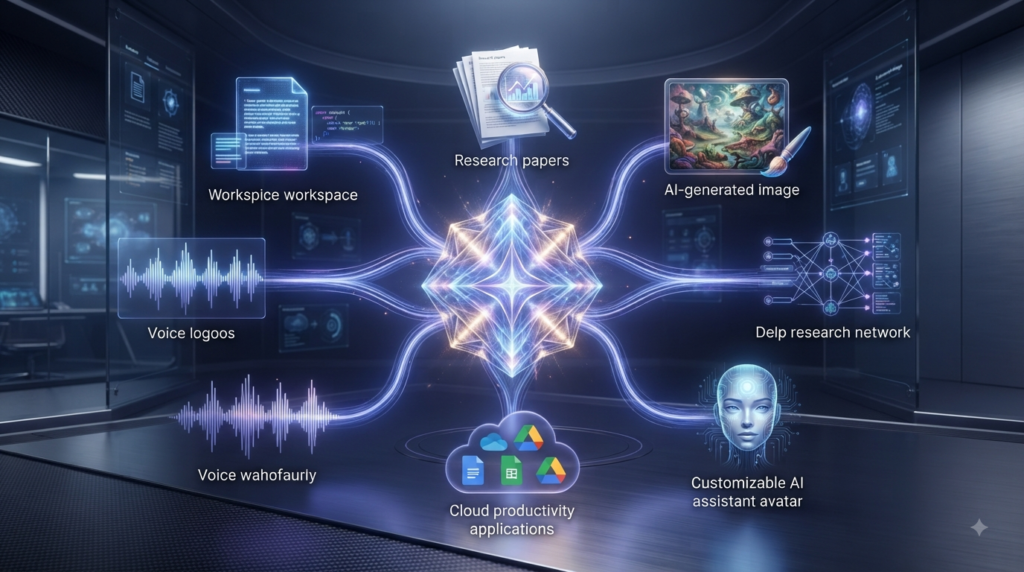
The seven capabilities covered in this guide are Canvas, NotebookLM, AI image generation and editing, Deep Research, Gems, Google Workspace connections, and Gemini Live. Together, they extend Gemini beyond basic question-and-answer conversations into research, creation, productivity, customization, and voice interaction.
2. Is NotebookLM the same as Gemini?
No. NotebookLM is a separate Google AI research tool focused strongly on working with sources you provide. Gemini can also work with NotebookLM notebooks in supported experiences, but the two products have different capabilities and source-grounding behavior.
3. Is Gemini Deep Research useful for students?
Yes. Students can use Deep Research to investigate complicated subjects, identify relevant information, organize findings, and develop a starting point for further study. However, students should verify important claims and use appropriate academic sources rather than treating AI-generated research as automatically authoritative.
4. Can Gemini create and edit images?
Yes. Gemini Apps currently support image generation and editing in supported environments. You can create an image from a description, upload an existing image, and request certain changes. Availability and age requirements can vary.
5. What are Gemini Gems?
Gems are customized versions of Gemini designed around specific instructions, goals, or repeated workflows. They can be useful for roles such as writing assistant, study partner, coding helper, or brainstorming assistant.
6. Can Gemini access Gmail and Google Drive?
Gemini can connect to supported Google Workspace services when the necessary settings and access requirements are satisfied. Depending on the connection, Gemini can find information, summarize documents, interact with tasks, work with notes, and help with Calendar-related information.
7. Can I talk to Gemini instead of typing?
Yes. Gemini Live is designed for natural voice conversations. You can speak to Gemini, ask follow-up questions, and interrupt its responses in supported experiences.
8. Are all Gemini features free?
Not necessarily. Feature availability, limits, models, and usage allowances can depend on your account, region, age, device, and Google AI plan. Google’s current documentation shows that some features and higher usage limits vary between plans.
Final Thoughts: Don’t Just Use Gemini—Build a Better Workflow With It
When people hear about AI, they often focus on which model is “the smartest.”
I think that’s only part of the story.
The more important question is:
Can you use the right AI capability at the right moment?
Canvas can help you build and refine.
NotebookLM can help you understand your own sources.
Image tools can help you turn ideas into visuals.
Deep Research can help you investigate complicated subjects.
Gems can help you create repeatable AI workflows.
Workspace connections can help you work with information already stored across your Google ecosystem.
Gemini Live can make interaction more natural through voice.
That is why these 7 Hidden Gemini AI Features You Should Start Using Today are worth experimenting with.
You don’t have to master all seven today.
Start with the one that solves your biggest problem.
If you’re a writer, start with Canvas.
If you’re a student, experiment with NotebookLM.
If you’re a researcher, try Deep Research.
If you repeat the same AI tasks every week, build a Gem.
If you spend your day inside Google’s ecosystem, explore Workspace connections.
If you think better by speaking, try Gemini Live.
And if your work needs visual content, experiment with image generation and editing.
The goal isn’t to use AI for the sake of using AI.
The goal is to solve problems better, learn faster, create more intelligently, and spend your time on work that actually matters.
AI is most powerful when it becomes part of a thoughtful workflow rather than another app you occasionally open.
So don’t just read about these features.
Open Gemini.
Pick one.
Give it a real problem.
Experiment.
Then improve your workflow from there.
Start small. Learn what works. Build your own system.
Link 1: Google Gemini Help Center
Link 2: Google Gemini Canvas Guide
Link 3: Google NotebookLM Help
Link 4: Google Gemini Deep Research Guide
We can provide advice and practical solutions, but the final outcome is in the hands of Allah (SWT). Turn to Him, make sincere du’a, and trust His plan. With Allah’s help, every difficulty has a way forward, and every goal becomes possible.